Method A — Shizuku Setup
Recommended · No PC needed after initial setup
What is Shizuku?
Shizuku
is a free, open-source app that lets ordinary Android apps call system APIs
with ADB-level privileges — without requiring root access. It starts a
privileged server on your device (via ADB or Wireless Debugging), and any
app that has been granted access can use it to perform elevated operations
locally. ADB Toggle uses Shizuku to grant itself the
WRITE_SECURE_SETTINGS permission so it can toggle USB debugging
on or off without a PC connection.
Steps
-
Install Shizuku from GitHub Releases.
The Google Play build is often outdated and may not install or run on the latest Android versions. Download the latest APK from the official GitHub releases page and install it on your device (you may need to allow installation from unknown sources). → Download Shizuku from GitHub ReleasesDo not rely on Google Play for Shizuku The Play Store version can lag behind and fail on newer Android releases. Use the GitHub release APK unless you already know the Play build works on your device.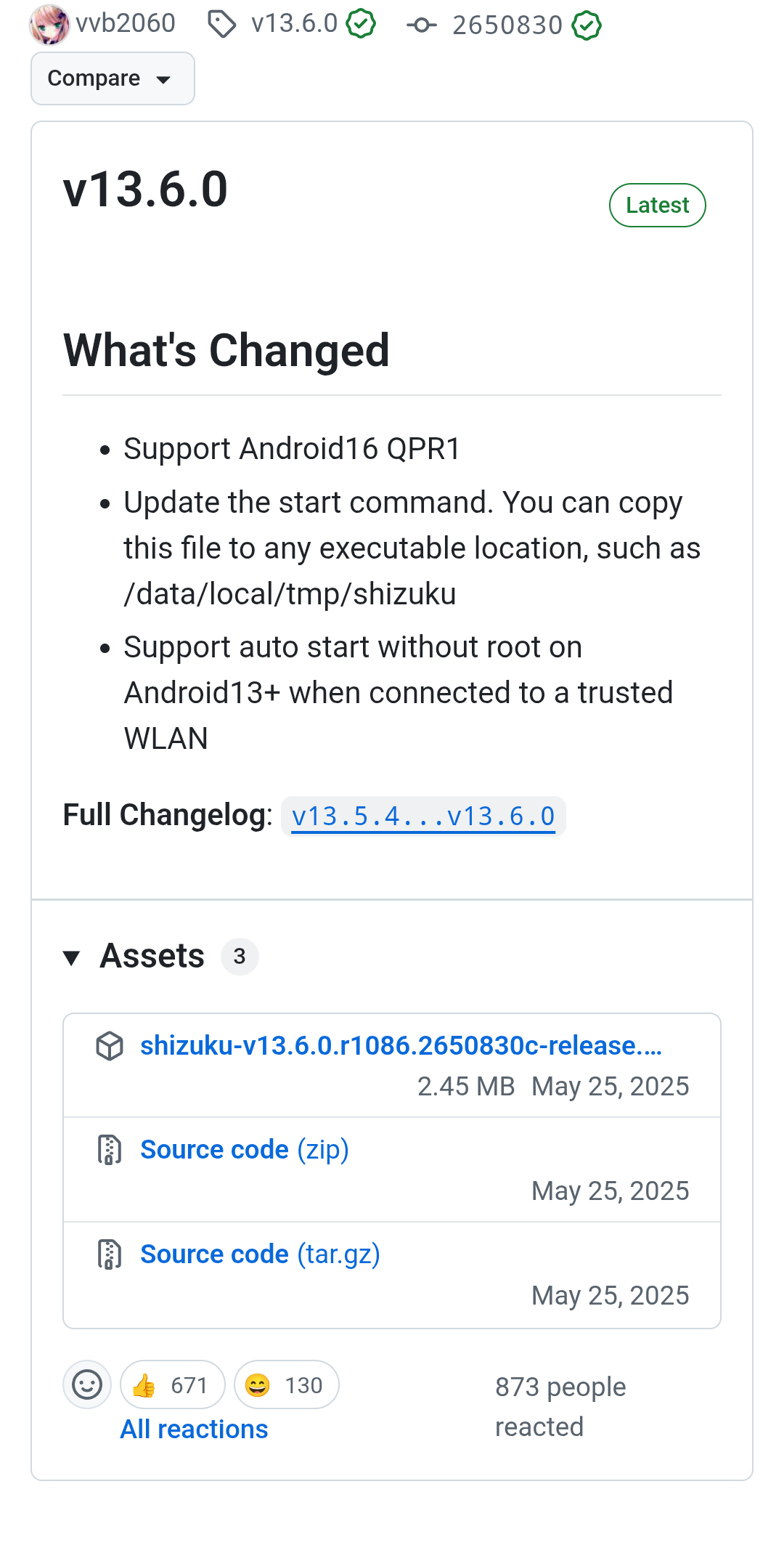 Screenshot placeholder — shizuku-step1.png
-
Start the Shizuku service on your device.
Open Shizuku and follow its instructions to start the service. On Android 11+, use Wireless Debugging (no PC required). On older versions, a one-time USB pairing with a PC is needed.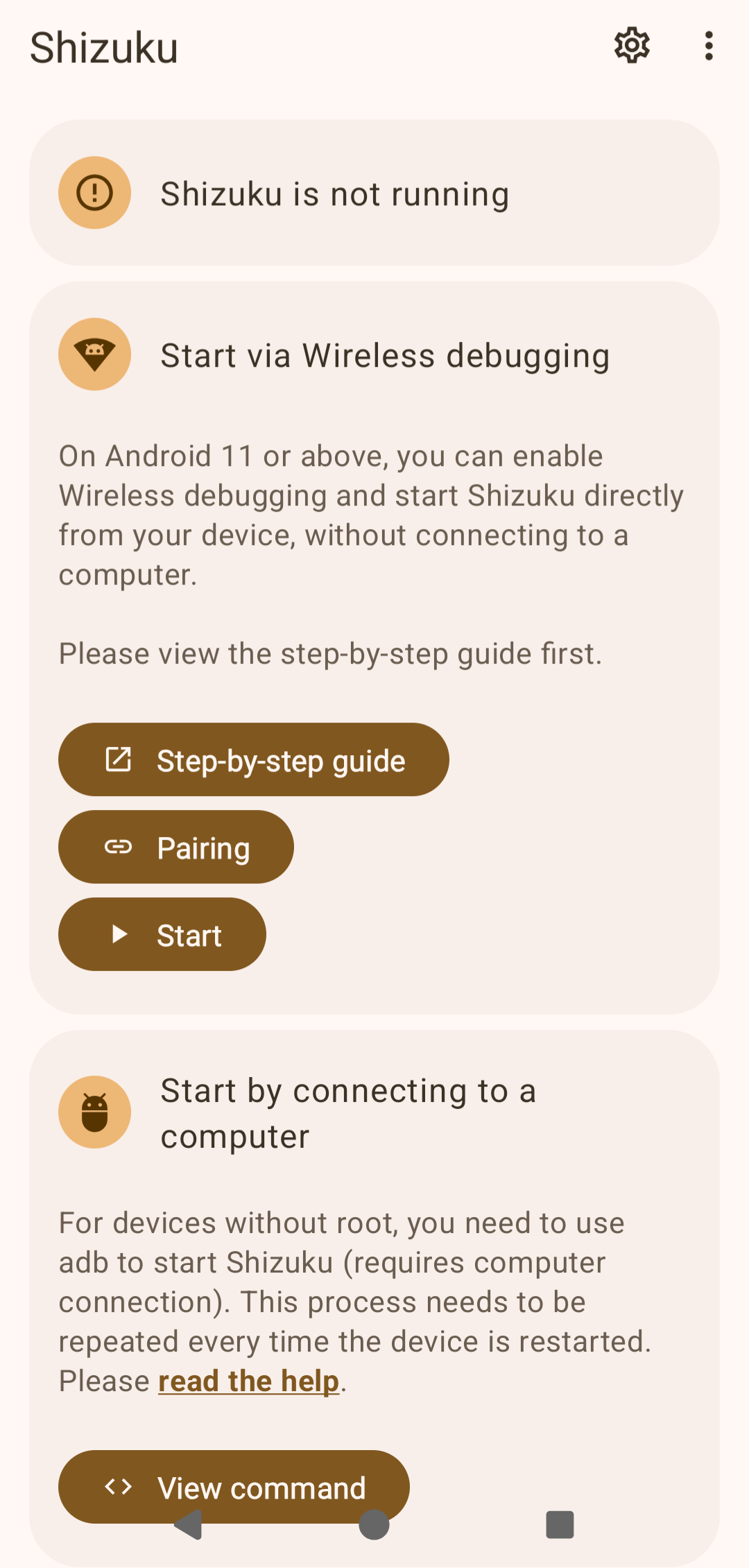 Screenshot placeholder — shizuku-step2.png
Wireless Debugging (Android 11+) Settings → Developer options → Wireless debugging → tap "Pair device with pairing code" and follow the Shizuku in-app guide.
Screenshot placeholder — shizuku-step2.png
Wireless Debugging (Android 11+) Settings → Developer options → Wireless debugging → tap "Pair device with pairing code" and follow the Shizuku in-app guide. -
Open ADB Toggle → Settings.
Tap the settings icon (⚙) in the top-right corner of the main screen.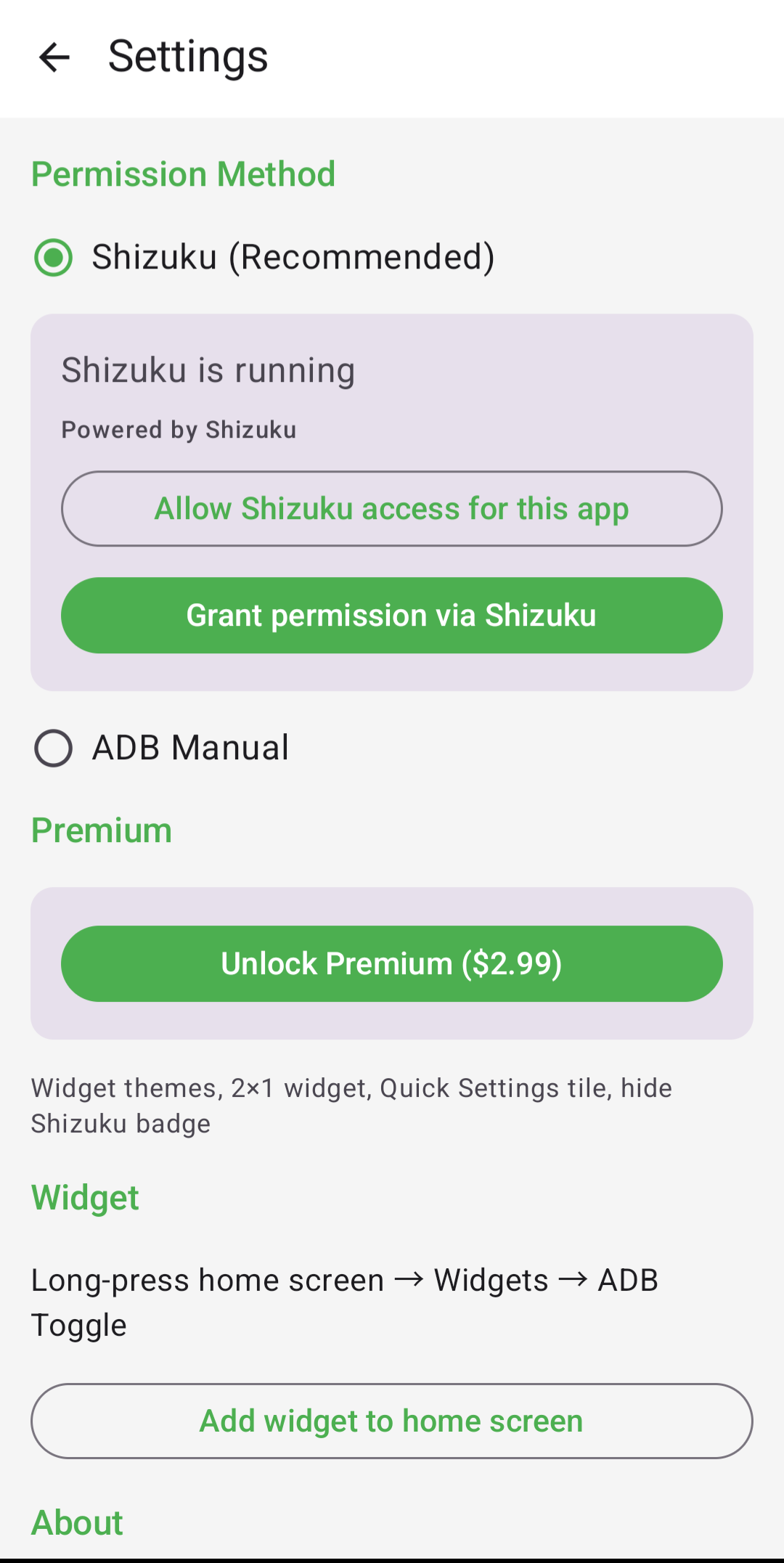 Screenshot placeholder — shizuku-step3.png
-
Select "Shizuku (Recommended)" as the permission method.
Under the Permission Method section, choose the Shizuku radio button. -
Tap "Allow Shizuku access for this app" if prompted.
Shizuku will show a system dialog asking whether ADB Toggle may use it. Tap Allow.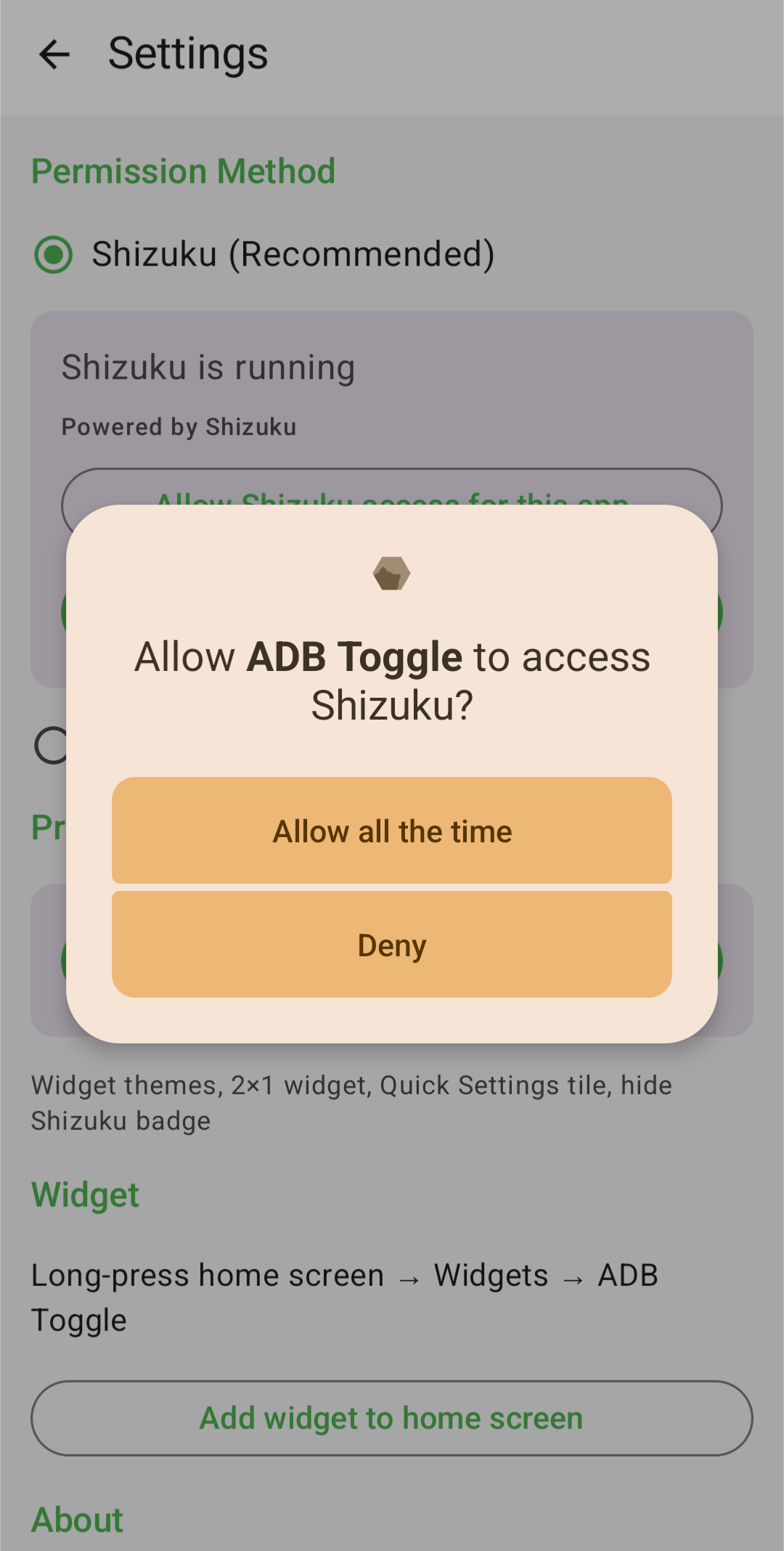 Screenshot placeholder — shizuku-step5.png
-
Tap "Grant permission via Shizuku".
ADB Toggle will use Shizuku to run thepm grantcommand internally. You will see a "Permission granted" confirmation.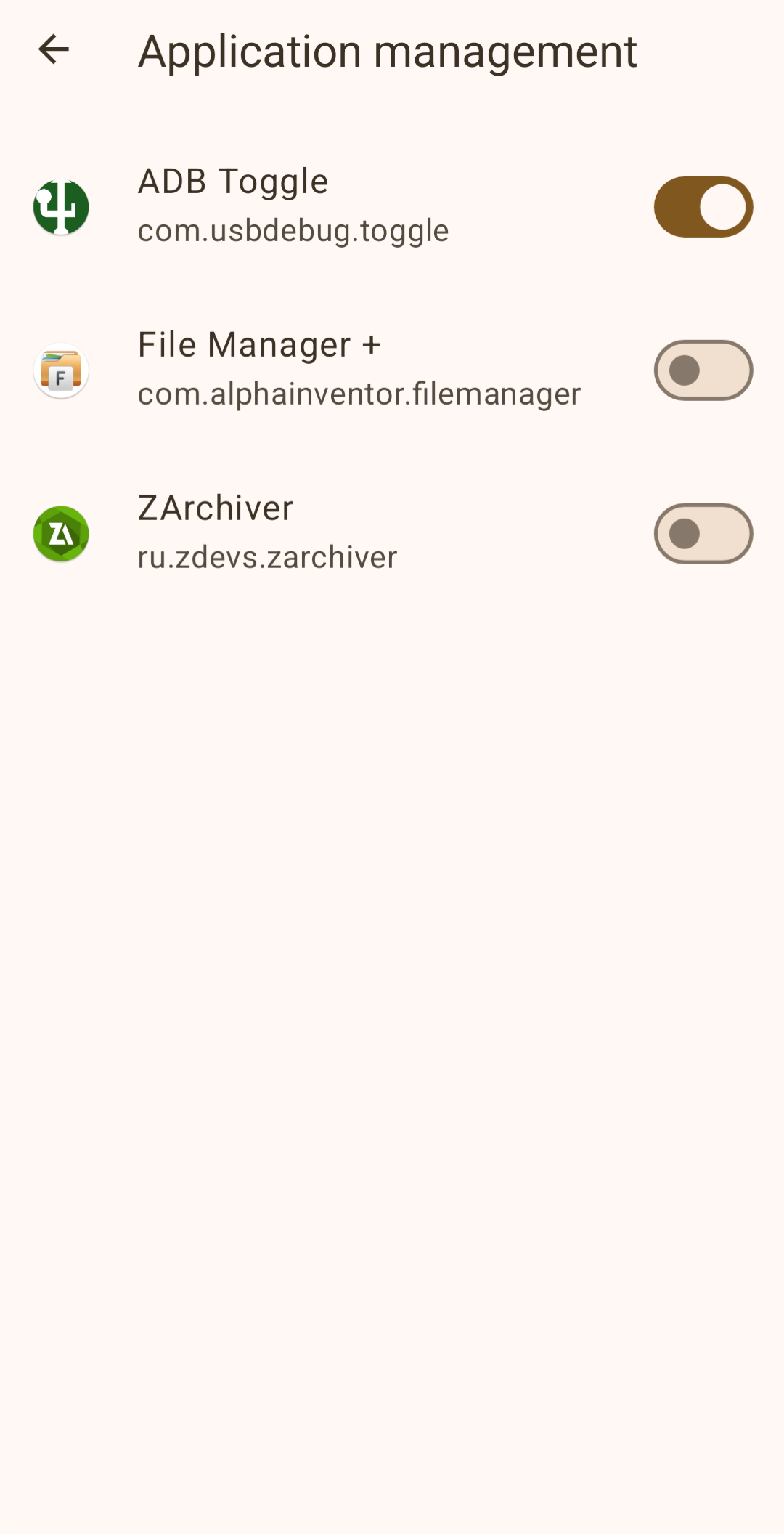 Screenshot placeholder — shizuku-step6.png
Troubleshooting
Shizuku shows "Not running"
The Shizuku service stops when the device restarts. Open Shizuku and
start the service again. On Android 11+, "Start on boot (Wireless Debugging)"
can automate this — grant WRITE_SECURE_SETTINGS to Shizuku itself
first (see the Shizuku in-app prompt).
"Grant permission" button does nothing
Make sure you tapped Allow in the Shizuku permission dialog (step 5). Try tapping "Allow Shizuku access" again in ADB Toggle → Settings.
Permission revoked after app update
Updating the app should preserve the permission. If it is lost, repeat step 6 (the grant step — Shizuku must still be running).